Guide / Private read-later
Pocket
alternative
A private read-later library that lives in your own Google Drive.
03 / Your Drive
Pocket was good at one small, important job: it gave interesting things a place to wait. You could spot an article between meetings, save it, and come back when you had the attention it deserved. The product disappeared. The need did not.
If you are looking for a Pocket alternative now, the obvious move is to choose another read-later service. That may be exactly right for you. But Pocket’s closure also gives us a useful moment to ask a less obvious question: where should a personal archive live in the first place?
Pocket closed. Your reading habit carried on.
Mozilla shut Pocket down on July 8, 2025. It was a reminder that even a well-loved service can reach the end of its life. That is not a criticism of Pocket; products change, companies refocus, and maintaining a service forever is rarely possible.
Still, your saved material is personal. It may include research for a book, visual references for a client, a recipe you make every winter, or one paragraph that changed how you think. A replacement should make saving effortless, but it should also make leaving uneventful.
Instead of asking which company should hold the next archive, ask whether the archive can live somewhere you already control.
What should a private Pocket alternative do?
A private read-later tool needs more than a privacy label. Look for a workflow you can explain without squinting at a diagram: where the content goes, when it is encrypted, what the provider can see, and how you take the library elsewhere.
- Save the useful part, not only the address. A link is fragile. Articles change, images disappear, and pages are redesigned.
- Protect content before it reaches cloud storage. “Encrypted” should describe the capture itself, not only the connection used to upload it.
- Use an ordinary, visible storage location. You should know where the files are and which account holds them.
- Offer a readable export. Portability matters most on the day you decide to leave.
Why SnapDrive takes a different route
SnapDrive is a Chrome extension, not another hosted reading platform. It was designed around a simple boundary: the company can run licensing without becoming the custodian of the things you save.
Your Drive, not ours
Encrypted captures go to a visible folder tree in your Google Drive. There is no separate SnapDrive content account to migrate later.
Sealed in the browser
SnapDrive encrypts each capture with AES-256-GCM before upload. Your passphrase and vault key stay out of the licensing service.
Keep the part that mattered
Save selected text, readable articles, images, links, video cards, full-page screenshots, or a selected area.
Export when you choose
Take selected items or the entire library as a readable ZIP containing files, HTML, text, CSV, and a manifest.
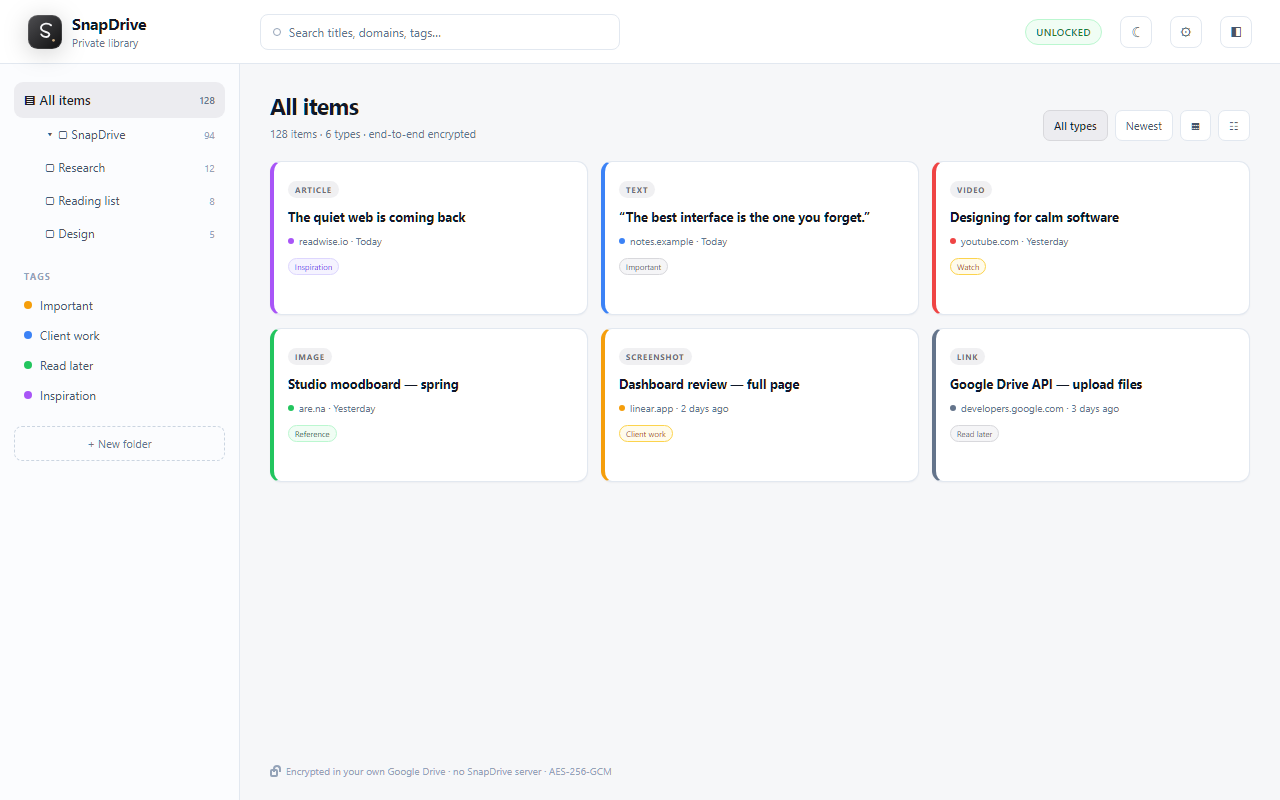
SnapDrive and Pocket made different trade-offs
A fair comparison should say this plainly: SnapDrive is not Pocket with a different logo. Pocket was a mature, cross-platform reading service. SnapDrive is a newer, desktop-Chrome capture library with a narrower promise around privacy and ownership.
| Question | The former Pocket workflow | SnapDrive |
|---|---|---|
| Where does the library live? | Inside a Pocket account on Pocket’s service. | As encrypted captures in your own Google Drive. |
| What can you capture? | Primarily articles, pages and videos for later reading. | Articles, selected text, images, links, video cards and screenshots. |
| How is it organized? | A reading queue, archive and tags. | Drive folders, tags, colors, capture types and search. |
| What is the privacy model? | A hosted read-later service tied to a Pocket account. | Browser-side encryption before content reaches your Drive. |
| Where could you use it? | Pocket offered web, browser and mobile experiences. | SnapDrive currently works in desktop Google Chrome. |
| Who is it best for? | People who wanted a polished cross-device reading queue. | People who value private capture, richer source material and user-owned storage. |
That last distinction matters. If phone and tablet reading are essential, SnapDrive is not yet the closest fit. If the important part is building a private research or inspiration library in Chrome, it may be the more natural one.
Who will feel at home here?
SnapDrive makes the most sense for people whose browser is already a workbench and whose Google Drive is already part of daily life.
- Writers and researchers who want passages and article copies beside their project files.
- Designers collecting images, screenshots and visual references with context.
- Consultants and knowledge workers who need folders and tags instead of a long, flat reading queue.
- Privacy-conscious readers who want the convenience of cloud storage without putting readable captures on a new content server.
The aim is not to make saving addictive. It is to make the good things easy to keep—and just as easy to find when they become useful.
A few practical questions
Is SnapDrive a direct replacement for every Pocket feature?
No. SnapDrive is a desktop Chrome extension built around private capture and user-owned storage. It does not currently offer Pocket’s former mobile apps, social discovery, or listening features.
Where does SnapDrive store saved content?
SnapDrive saves encrypted captures to a visible folder tree in your own Google Drive. SnapDrive’s license service does not receive the captured content, vault passphrase, encryption key, or Google Drive token.
What can I save with SnapDrive?
You can save selected text, readable articles, images, links, video cards, full-page screenshots, and a selected area of a page.
Can I export my SnapDrive library?
Yes. You can export selected captures or the full library as a readable ZIP with files, HTML, text, CSV, and a manifest.